
Your first envelope
Send one PDF to one person in about two minutes.
Press the + at the top and choose Send for signature (or use the button on Documents).
Documents: drop a PDF or Word file onto the page, or choose files. Word files are converted to PDF for you.
Recipients: add the person's name and email. The role is Needs to sign unless you change it.
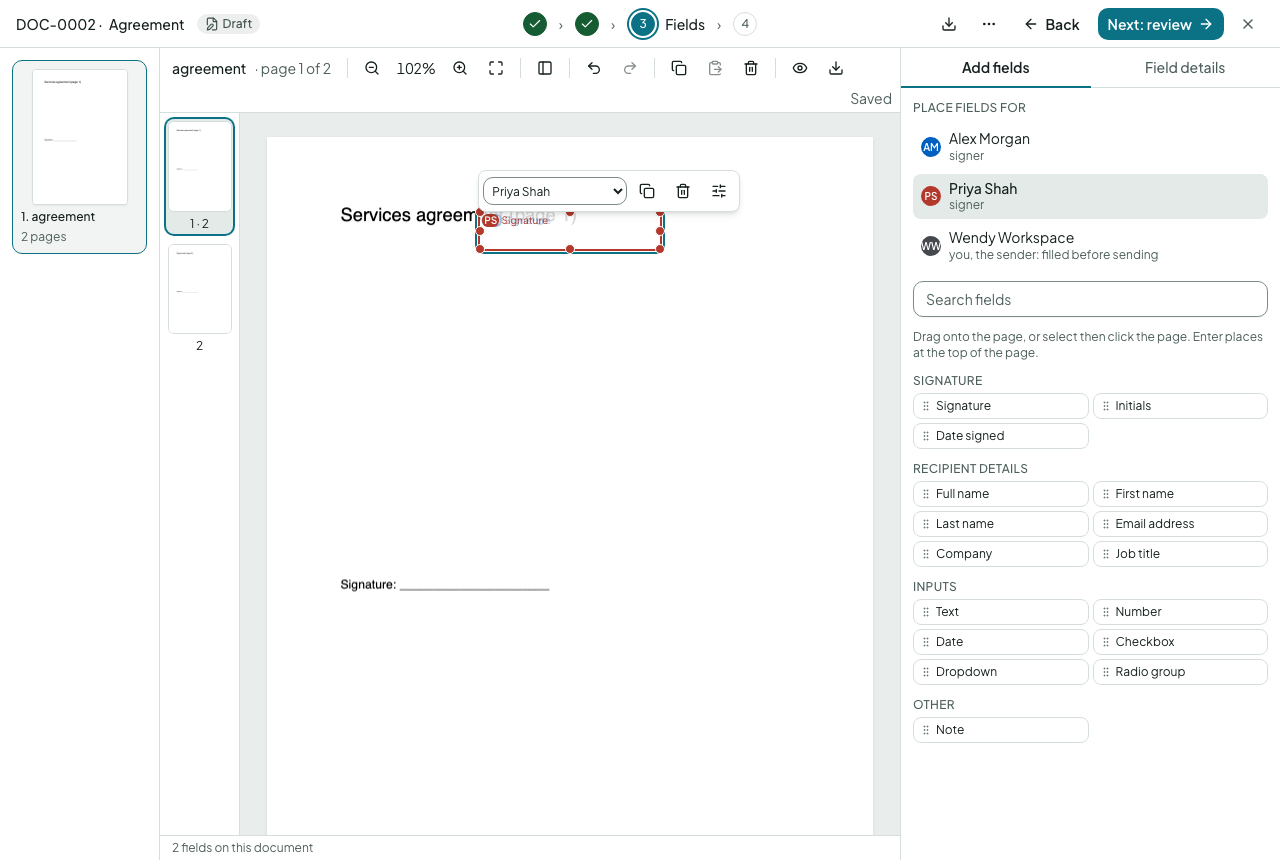
Fields: click Signature in the palette, then click on the page where they should sign. Add a Date signed field beside it if you like.
Review: check the title and reference, write a short message, and choose Send.
The envelope now shows as Sent on Home. You'll be emailed when the person signs, and when everyone has, the sealed PDF and certificate arrive by email and are kept on the envelope's page.
Next: send for signature in full, or use a template your workspace has already set up.