Signing a document
Open the link in your email, read, fill in your fields, adopt a signature and finish. No account needed.
- Open the email and choose the button in it. The link is for you only.
Choose Continue. If the sender asked for it, enter the six-digit code emailed to you (see verification codes).
Read Before you sign and tick the box to agree to sign electronically. Then Continue to the document.
Choose Start, the button at the top right, to go to your first field; it then says Next and takes you to each field in turn. Fill in text (a taller box takes several lines), tick boxes, dates and lists; choose a signature field to adopt your signature by typing it, drawing it or uploading an image. It goes in that box only: each other signature or initials box is signed when you select it, and the page then takes you to the next one.
When all required fields are done, the same button says Finish, with an arrow beside it. Choose it.
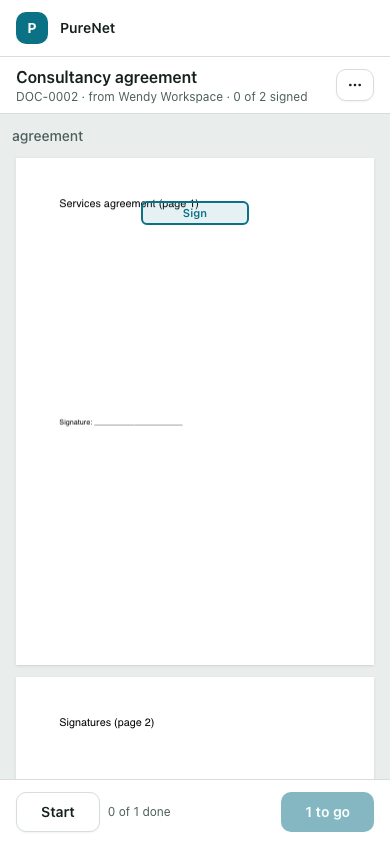
The boxes for you to fill are pale green with a dark edge, and a Sign here tab at the edge of the page points to the next one. What earlier signers have already put on the document (their signatures, initials, dates and answers) shows in place, as it will be printed. What fills itself has no box, only its words: the date you sign, your name as you signed in with, or something the sender filled in for you.
If your name isn't right, select it and correct it part by part: first name and surname, and your title, middle names or letters after your name where the document prints them. Prints as shows each way the document will print it. Every place your name appears changes together, and the sender is told. If the document also names you in its own text, that text can't change: ask the sender to correct and resend. When the sender has locked your name you can't change it; decline and say why if it's wrong.
If a box expects something in a particular form, such as a postcode or a sort code, a short note under it says what to enter. Put the value right, or clear the box if it is optional, and you can finish.
After you finish
A page with a large tick says All set. If you were the last to sign, Download signed PDF appears once your sealed copy is ready, usually within a minute. If others still have to sign, the sealed PDF and its certificate are emailed to you when everyone has signed. Opening the link in your email again shows the document with a bar at the top: once the copy is sealed, the bar has a Download button. The links keep working for 90 days after everyone has signed. See downloading your copy.
Not ready?
Finish later saves what you have entered. Come back with the same link; it works until the document's deadline.
The line under the title shows the sender and the reference; Message opens any message they left for you. Other actions holds everything else: declining, downloading or printing before you sign (when the sender allows it), handing over, finishing later, the language and help. A slim bar under the toolbar names the document you are reading, the page, and how many of your fields are completed.