
Workspace settings
General, members and roles, groups, fields and branding, for workspace admins.
Workspace admins find these under Settings, in the menu behind their initials at the top right. Settings opens as tiles in groups (Company, People, Documents, Time off). Each page has ← Settings at the top, and beside it the other pages of its group, so you can move between related settings without going back to the tiles.
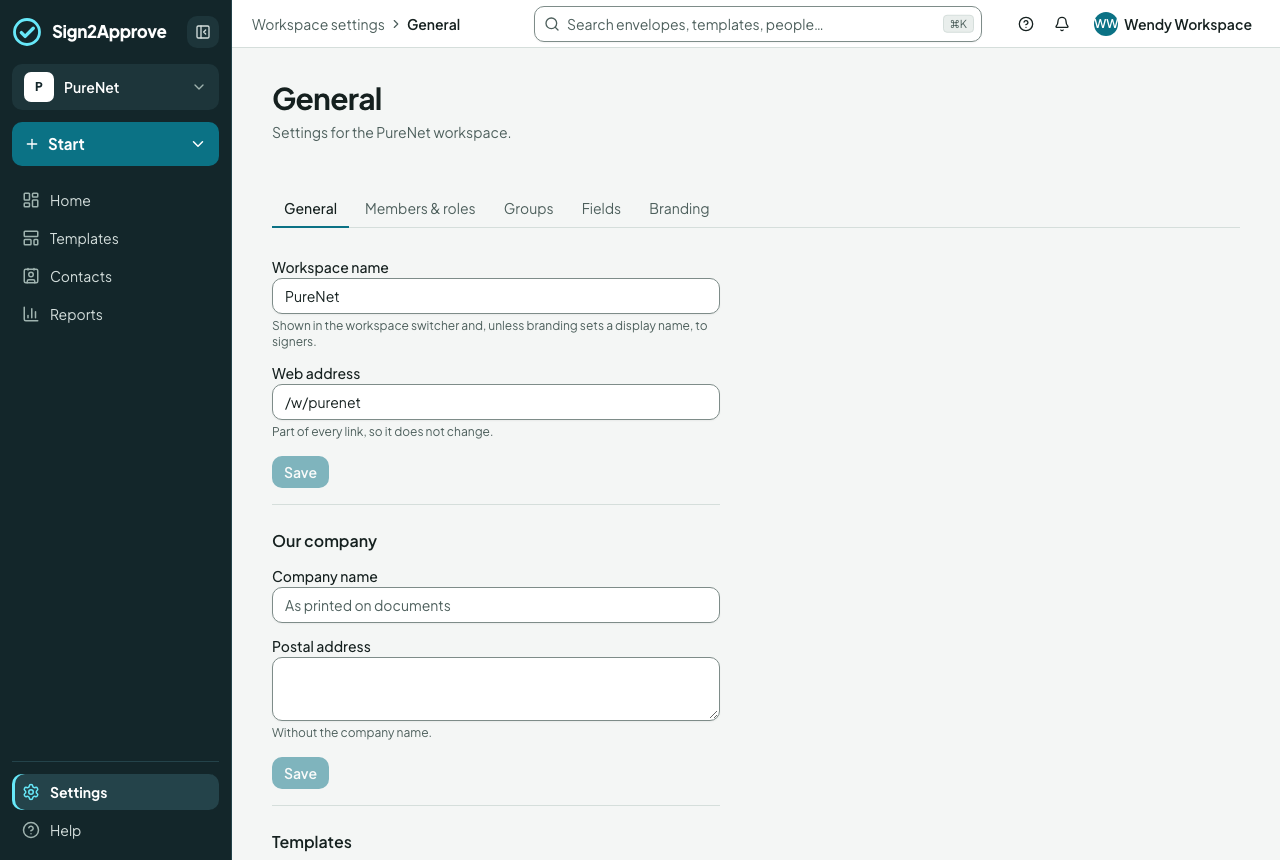
General
- Name of the workspace.
- Sealing and the certificate: whether the certificate of completion is appended to the signed PDF, a separate file, or both; the time zone shown on certificates; a margin stamp with the reference on every sealed page. See how documents are sealed.
- Changes after sending: whether moving a recipient to a different organisation after approval requires re-approval (off unless you turn it on).
- Templates: who sees the Gallery of starters, everyone (the default) or template managers only. A starter leaves the Gallery once the workspace publishes its own version of it.
- Copy notifications to: see below.
- Invitation emails: whether invitations also carry a short code to type at the signing site, for people whose email blocks links. Off unless you turn it on; the button is all anyone else needs.
Members & roles
Who is in the workspace and their role: viewer, member, sender, manager, HR, workspace admin. Roles give permissions; there is no per-person switch for sending or approving beyond the role. A member can't send documents but has everything personal (their own leave and claims, when those modules are on); HR sends documents like a sender and runs leave for everyone.
Our company
The company name, postal address, company number and VAT registration number, printed wherever a document says {{company.name}}, {{company.address}}, {{company.company_number}} or {{company.vat_number}}. None is asked for when sending; a document that prints one cannot be sent until it is set.
Contact email (optional) is where we tell people outside the company to get in touch. For example, someone who replies to an automatic email is told "Contact Larkspur at [email protected]". Left blank, the mailbox under Email a copy of updates to is used; with neither set, they are told to contact you directly.
Kind of business (optional): what your company does, picked from a short list, with a few words of your own if you like ("managed IT and broadband for small businesses"). AI Assist reads documents with this in mind, so it can tell your clients from your suppliers. Only people in your company see it.
Groups
Named groups ("Finance", "Directors") a template route can go to: any one member acts, or the sender chooses one. A group can be marked as a department: each person belongs to at most one, set under Members & roles beside Reports to; a route that goes to a department reaches everyone whose department it is. Marking a group as a department moves the people on its list who have no department into it, tells you about anyone already in another department (change theirs under Members & roles if they belong here), and clears the list. A department has its own approvers (any of them acts first; they need not be in it). Under Members & roles, Reports to sets each person's line manager, which routes use; changes save as you make them.
Fields, Document types and Document roles
The names your documents share, on three pages that link to each other: see fields and document roles. Our company number and VAT registration number are set under General, beside our name and address.
Branding
The logo, colours, display name and an email footer line, on the signing page and in every email. Branding is captured onto an envelope when it is sent, so changing it later never alters what a recipient already has. The page previews each email type with sample data and offers Send me a test email to your own address. A PNG logo appears in emails; an SVG one is used on the signing page, and the display name stands in on email. If white text would not read on your colour, the email button uses ours.
A brand that is its own company. A further brand (Settings › Branding) can hold its own registered company name, company number and VAT registration, under If this brand is its own company: for a company you own that sends its own agreements, such as a trading company. What is sent as that brand prints those as your company's details, and AI Assist knows a party with its name is your side. Leave any of them blank and your company's own (General) is used.
Notifications
Copy notifications to: a shared mailbox that receives a copy of every notification sent to senders in this workspace (viewed, signed, approved, declined, completed, expiring, reminders). A template can name its own. See notifications.
API
Settings › API is for administrators who look after the company's integrations. A client lets one of your own systems use the API for this workspace: give it a name, choose the member it acts as and what it may do, and copy its client ID and secret, which is shown only once. It can never do more than that member can do in the app. New secret makes another while the previous one keeps working until the next, so you can change it without a gap; Revoke stops it and its tokens at once.
Webhooks, on the same page, tell your own systems the moment something happens here, such as an envelope signed or leave approved. Give the address on your system, a description and the events to send, and copy the signing secret, which is shown only once. Tick Include names and reference values to add people's names, envelope titles and the document type's details you can see; sensitive details are never sent. Delivery log shows what was sent and what your system answered, with Send again on each line. New secret makes another, and the old one keeps signing for 24 hours so the change is seamless; Delete stops it. If a webhook gets nothing through for 24 hours it shows as Failing and the company's administrators are emailed, and again when it works once more.
Account settings
Account owners and admins also have Account settings: users across workspaces, workspaces, account-wide branding, billing, and the audit log with its verification status.