
Fields and document roles
The company's named values, its document types and its document roles, so one name means one thing in every template, search and report.
Three pages under Settings → Documents hold the names your documents share: Fields, the values a document prints; Document types, the kinds of document you send; and Document roles, who signs, approves or fills one in. Under ← Settings on each, links move between them. A tag in a Word template, or a box placed on a PDF, that uses one of these names asks for it the same way everywhere, and searches and exports can find it.
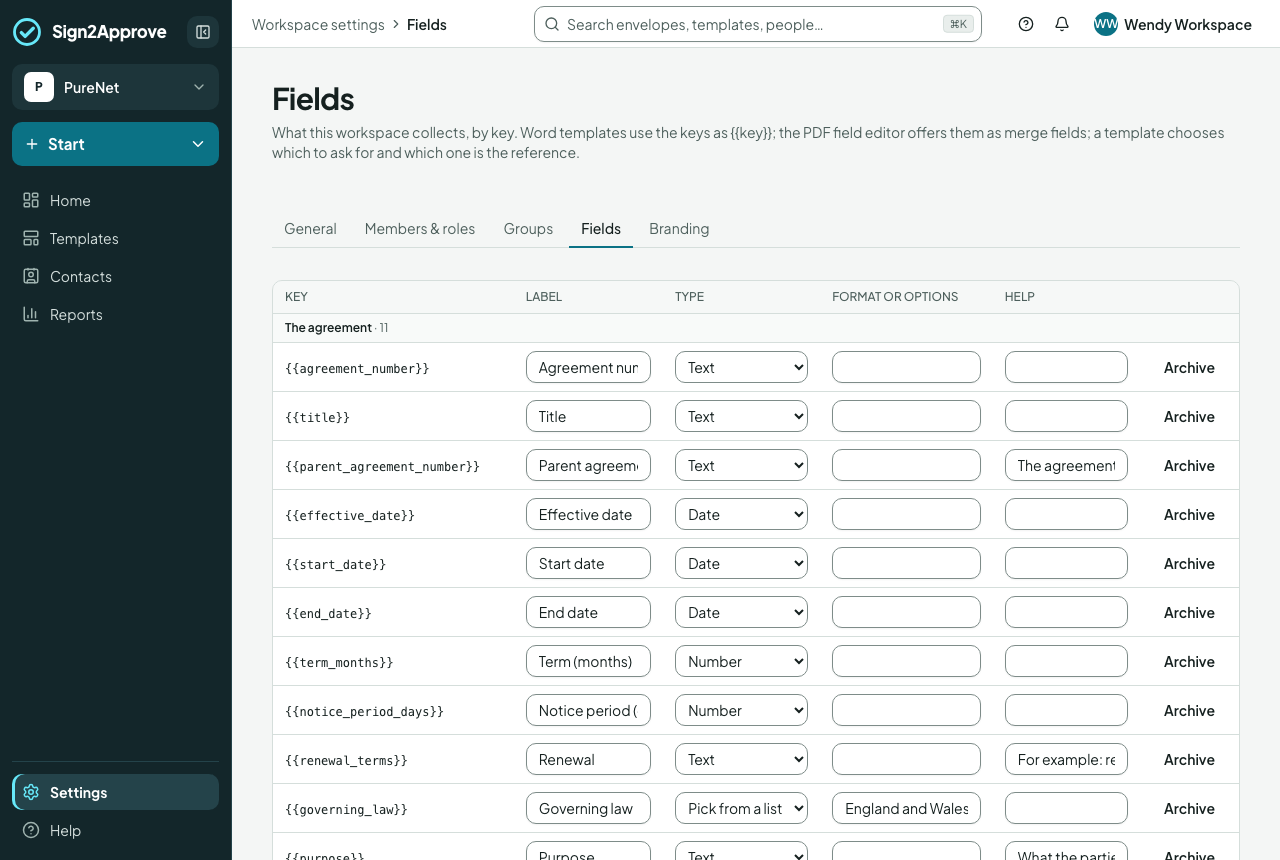
At the top of Fields, How tags are written is a short reminder of the tag shape. Word and PowerPoint templates has the full account.
Fields
Each field has a key (start_date, client.address), a label people see, a type (text, number, money, date, organisation, or pick from a list) and, for a list, its answers. A Word tag {{start_date}} takes its question, type and format from here.
A new company starts with about ninety fields, in groups: the agreement, the parties, price and payment, scope and delivery, people and employment, policies and consent, and purchasing and suppliers. Each group opens and closes; Open all groups shows everything. Fields you add are under Your own fields, and archived ones under Archived.
Our own name, address, company number and VAT number are not fields: set them once under Settings → General, and documents print them as {{company.name}}, {{company.address}}, {{company.company_number}} and {{company.vat_number}}.
Who completes a field
Completed by says who fills a field in when a document doesn't say: The sender, or Who it describes, the person or company the field is about. A new company starts with a person's own details (date of birth, National Insurance number, bank details, home address, emergency contact) completed by that person, and everything about the deal (values, dates, references) by the sender. A supplier's bank details are completed by the supplier's signer.
A document or template can still say otherwise for one field, and a person's own signature, initials and signing date are always theirs. Change Completed by in the field's row; documents already sent don't change.
Sensitive fields
Tick Sensitive on a field whose value should be kept out of sight: it is masked as it is typed, with Show to check it, and AI Assist never reads it or fills it in for you. A person's own identifiers (date of birth, National Insurance number and their bank details) are always sensitive.
Add a field
- Under the fields, fill in New field.
Give it a key (
po_number: lower-case words joined by underscores;supplier.po_numberfor a detail of a company), a label and a type.- Choose Add field. It opens under Your own fields.
You can also add one where you meet it: a new value in an uploaded Word file, or a box's Data label on the Fields step, offers Add to the company's fields to anyone who may manage them. Using a company field is never required; a box or value with a name of its own works just the same, kept with that template.
Rename and archive
Change the label freely; the key stays. Archive a field that is no longer needed: nothing already sent changes, and Restore brings it back.
Document types
The kinds of document the company sends (a contract, an offer letter, a purchase order, a new supplier form and about thirty more, in groups), each with the fields such a document usually asks for. On the Fields step a document's type suggests ready-made boxes from that list, in its order.
Each row shows how many fields a type has and the first few. Select it to open its panel: rename it, take a field off with its ×, add one under Add a field to …, or Archive a type you never send (documents that have it keep it). Add the company's own under New document type, at the foot of Your own types; its panel opens so you can give it its fields. Other has no fields and stays.
Document roles
Document roles lists the roles that come with the product, by the name a document uses, grouped by their relationship to your company: Our company (Our signer, Our approver, HR, Line manager and more), Clients (Client signer), Suppliers (Supplier signer), People who work with us (Employee, Candidate, Contractor), Others who sign (Witness, Guarantor, Adviser, Parent or guardian) and Directors and shareholders. For each, the page says in one line who they are, how it is written in a document, who it acts for (a client, a supplier, themselves, or the company) and who fills it to start with: the sender, the sender's line manager, anyone in a group, or a person the sender picks.
A role is about the relationship, not who is selling: a supplier who sends you its own quote to sign is still a Supplier signer, and a business applying to you for credit is a Client signer. AI Assist reads documents the same way, using these lines.
A document role is not a person's access to the company (Administrator, Owner): it is filled by a person each time an envelope is sent. A template can use roles of its own, and says who fills each one on its Recipients step.
If you can change settings, Add role adds one of your own: its name, Who they are (one line, required: AI Assist matches the parties in a document to roles by it), who it acts for (your company, a client, a supplier, themselves or no one in particular) and who fills it to start with. A template that uses it starts it that way. Edit changes it; on a role that comes with the product you can change only its line. Hide takes a role off the list and away from AI Assist without touching the templates and envelopes that use it; Show brings it back. A role of your own that nothing uses can be deleted; once it is used, it can only be hidden.
Where fields appear
- as the questions the sender answers before sending;
- as only if rules on a step;
- printed on the page where a document says so;
- in searches and exports.