Notifications
What you are told about the envelopes you send, by email or in the app, and a shared mailbox that gets a copy.
When something happens to an envelope you sent, or to a leave request of yours, you are told: under Activity in the Inbox at the top of the app, and by email unless you choose otherwise.
What you are told about
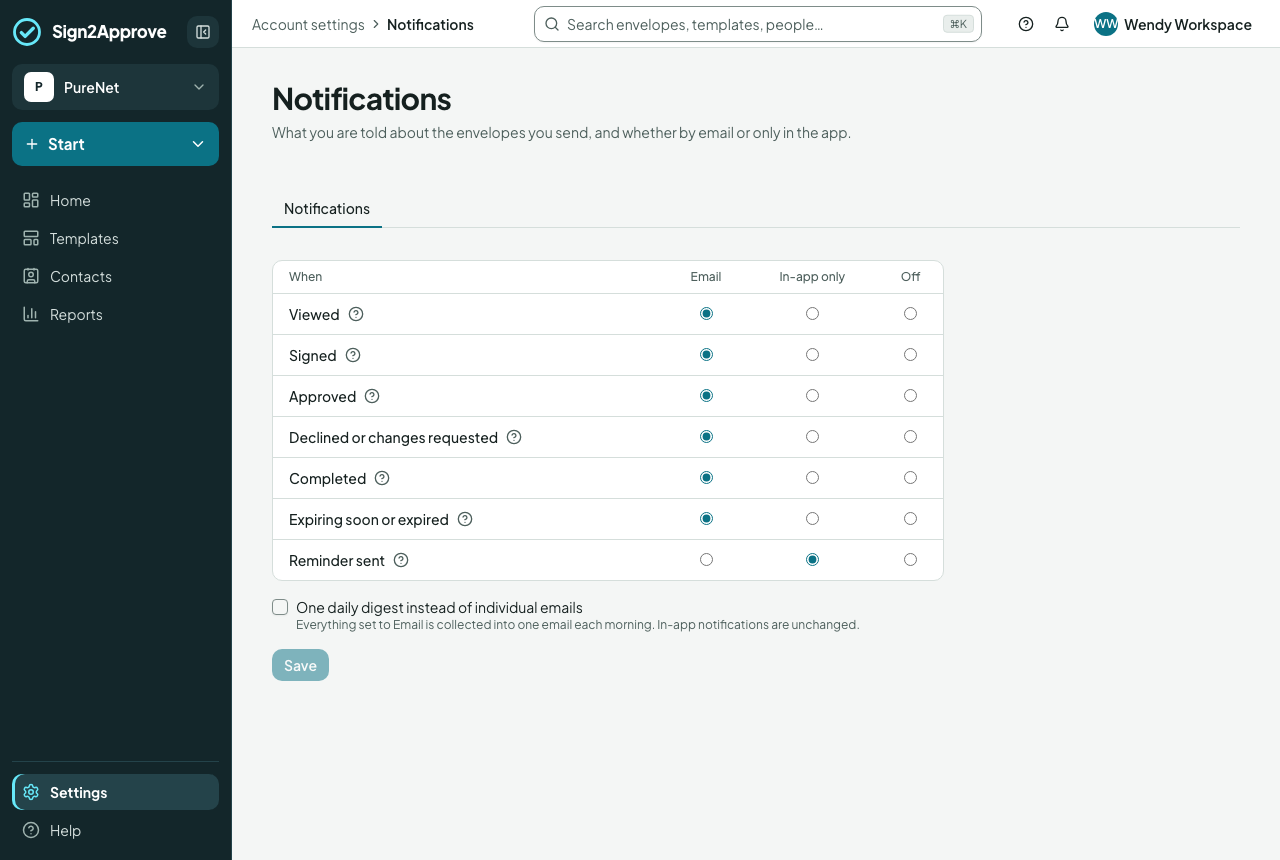
| Event | When |
|---|---|
| Viewed | The first time each recipient opens the document (not when their email client scans the link) |
| Signed | A recipient signs their step |
| Approved | An internal approver approves |
| Declined or changes requested | A recipient declines, or an approver rejects or asks for changes; the reason is included |
| Completed | Everyone has signed; the sealed copy follows |
| Expiring soon or expired | Three days before the expiry date, and when it expires |
| Reminder sent | A reminder went to a recipient, by you or on the envelope's schedule |
Choosing how
Account settings → Notifications (also from your name at the top right). For each event choose Email, In-app only or Off. Everything is by email to start with, except Reminder sent, which is in-app only.
Once you have signed in to our phone app, a fourth choice appears: In the app and on my phone, and it becomes the choice for every event you haven't set yourself (anything you set to Off stays off). It shows the notification in your Inbox and sends a notification to your phone instead of an email. The phone notification says what the email would, names included, such as who has asked for leave and when. It says only that something is waiting for you, or that there's an update, for a confidential document, a document of a restricted type and anything about sickness, since anyone near your phone can read its lock screen. Choose Email for an event to have it by email again. Signing the phone out, or removing it under Account settings → Devices, stops them. Documents waiting for you to sign or approve are sent to your phone as well as by email whenever you are signed in to the app.
Tick One daily digest to receive everything set to Email as a single email each morning instead of one at a time. Activity in your Inbox is unaffected.
The Inbox
The Inbox icon at the top of the app holds three tabs. For me is what needs your action: documents to sign, approve or fix, and leave requests to decide; its count is the badge on the icon. Team is what is waiting on the people who report to you, each saying who it is assigned to; where you may act for them you confirm that you are stepping in, and the record names you. Activity is this feed: what has happened, with the unread count on the tab; opening one marks it read and Mark all read clears the rest. An unread notification is never a task, and a task is never hidden by being read. View all opens the same Inbox as a page with room for filtering by module.
Under Time off on this page you choose the channel for each Time off event in the same way: requests to decide, decisions on your own, reminders, allowance changes and cover.
A shared mailbox
A workspace admin can set Copy notifications to under Settings → General: every notification to any sender in the workspace is copied to that mailbox (a team inbox, for example), whatever the sender's own settings. A template can name a different mailbox for its own envelopes, under its settings when you publish it.