
Placing fields
Put signature, initials, date, text, tick box and other fields where each person needs them.
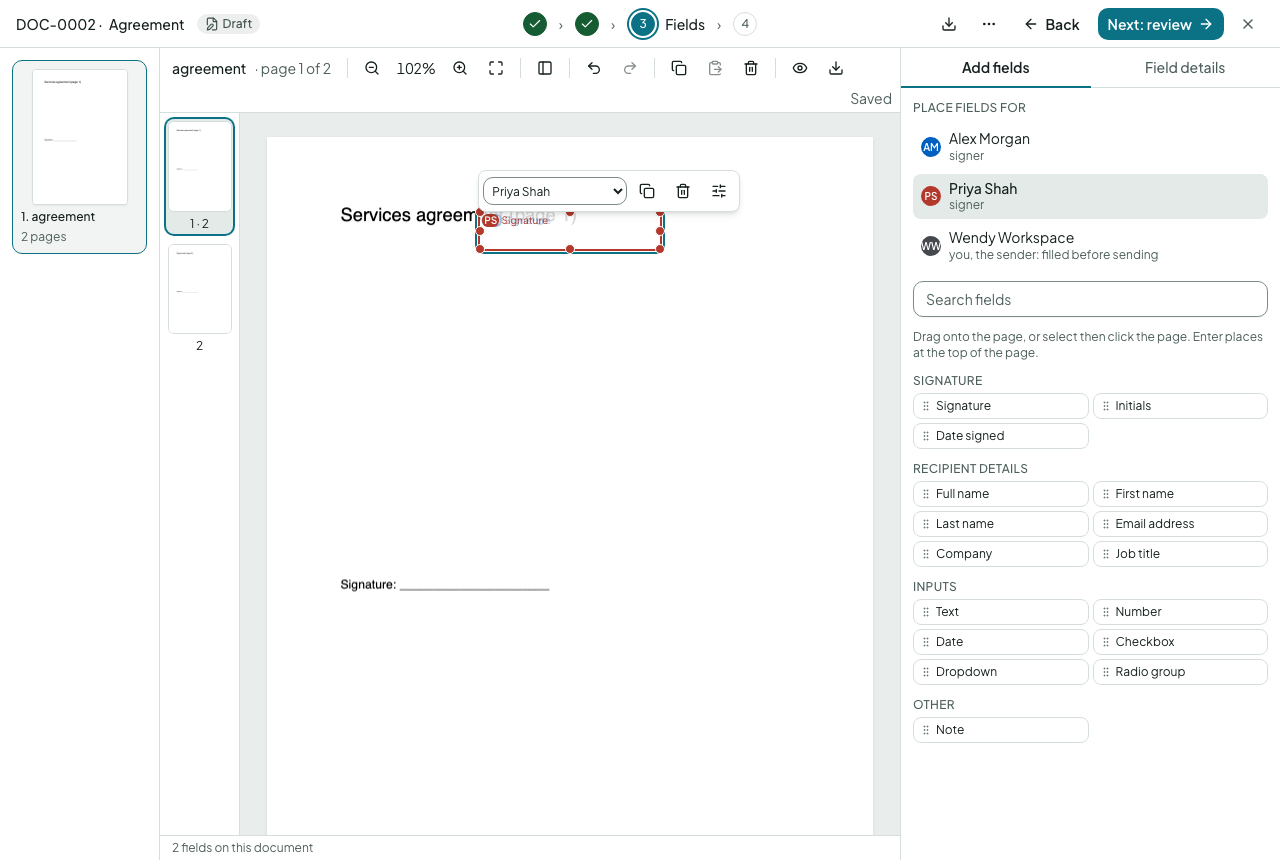
Place a field
- In the palette, pick the person the field is for. Each person has a colour.
Click a field type (Signature, Initials, Date signed, Name, Text, Tick box, and others), then click on the page. Or drag it into place. With the keyboard: focus the type and press Enter.
Drag the field to move it, onto another page too; drag a corner to resize; Delete removes it. Arrow keys nudge; Ctrl/Cmd+Z undoes.
Properties
With a field selected, the panel on the right sets whether it is required, its label, a placeholder, and for text fields a format (a number, a date, a money amount). Name and Date signed fill themselves at the moment of signing. A Name field prints the person's name in the format you choose under How the name prints, which lists each format as the name it prints for them: their name, a formal name with their title, their legal name with middle names, a formal legal name, their first name, surname or initials. A format that needs a part you don't hold yet says so; Change … 's name fills it in. The box on the page shows the name as it will print. In a template, where nobody is chosen yet, the formats are shown with an example person. Every name field of theirs prints the same name, so a correction changes them all. Tick Lock the name if they must not correct it while signing, or use the padlock in the bar above the selected box; a locked box shows a padlock. The padlock locks a text field the same way: they see what you entered but can't change it. A colleague's name comes from how they sign in; they add their title, middle names or letters after their name under My profile → Your details → More name details, and documents print it from there.
A text field can check what is typed into it. Under Validation choose number, currency, email, phone, UK postcode, National Insurance number, sort code, bank account number, company number, VAT registration number, or a pattern of your own. The person signing is told what is expected and cannot finish while a value is in the wrong form; an empty optional field is always fine. A text field written as a tag in a Word template picks its check from its name: {{ni_number by=employee}}, sort_code, account_number, postcode, vat_number, company_number, telephone and email each check themselves.
Fields the sender fills
Choose Sender in the palette for fields you fill yourself before sending, such as a reference value printed on the page. They are read-only for recipients.
Several documents and pages
Use the document switcher and page thumbnails to move around. Fit to width and zoom help on dense pages. Select several fields with Shift-click to align them or match their size.